Google Sheets
Identifying Sheets
When you open a spreadsheet in the browser the link will look something like https://docs.google.com/spreadsheets/d/1eq8DhTowKJqPiybptG850V_kMr9336RkSo27GbJEZ3c/edit#gid=0
The bit between the /d/ and /edit is the sheet id.
Rather than providing this magic identifier to each method, the sheet id is set with the set_sheet_id method, and then assumed to have that value until it is called again.
The test spreadsheet we’re working with is here and contains information about the 2015 New York Mets.
Reading a Value
from googly import SheetsAPI
api = SheetsAPI()
api.set_sheet_id('1eq8DhTowKJqPiybptG850V_kMr9336RkSo27GbJEZ3c')
assert api.get_value('Batting!A4') == 'Daniel Murphy'
assert api.get_value((0, 3)) == 'Daniel Murphy'
There are multiple ways to provide the cell coordinates.
A1 Notation - This is the “standard” way to refer to cells in a spreadsheet, which consists of the column specified as one or more letters, and the row, specified by a number, with an optional prefix of the specific sheet/tab and an exclamation point.
Python-y Coordinates - A zero-indexed tuple for the column and row.
Reading a Range of Values
from googly import SheetsAPI
api = SheetsAPI()
api.set_sheet_id('1eq8DhTowKJqPiybptG850V_kMr9336RkSo27GbJEZ3c')
for row in api.get_range('Pitching!A2:B6'):
    print('{} was {} years old in 2015'.format(*row))
This returns the text contents of each cell, in row major order, i.e. the first thing returned is an array containing the values of the first specified row.
You can also get the entire contents of a sheet using get_contents.
Reading Dictionaries
To get an experience similar to csv.DictReader, you can use get_dictionaries
from googly import SheetsAPI
api = SheetsAPI()
api.set_sheet_id('1eq8DhTowKJqPiybptG850V_kMr9336RkSo27GbJEZ3c')
for row in api.get_dictionaries('Pitching'):
    print(row)
This will use the first row as column headings and create dictionaries with the rest of the rows. The first thing printed is
{'Name': 'Bartolo Colón', 'Age': 42, 'W': 14, 'L': 13, 'ERA': 4.16, 'G': 33, 'IP': 194.2, 'H': 217}
Reading Metadata
The following methods are provided for getting the metadata.
get_metadata- returns a dictionary with all the metadataget_sheet_names- returns a list of strings with the sheets (tabs) within a spreadsheetget_sheet_info- gets the metadata for one particular sheet, based on the argument passed in:None- returns the first sheetint- returns the int as an index into the list of sheetsstr- returns the sheet with the title matching the string
get_sheet_name- uses the same parameter asget_sheet_infoto get the name of a sheet.has_sheet_name- returns True if the string parameter matches a sheet’s nameget_size- using the same parameter asget_sheet_inforeturns the column count and row count of the sheet as a tuple.
Writing Values
Building on the Google provided example for writing
from googly import SheetsAPI
api = SheetsAPI()
api.set_sheet_id('...')  # Insert your value here

# Set values to be a two-dimensional array as you would insert by hand
values = [
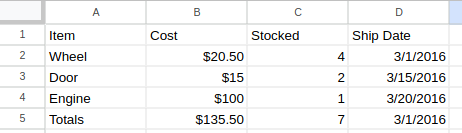
    ['Item', 'Cost', 'Stocked', 'Ship Date'],
    ['Wheel', '$20.50', '4', '3/1/2016'],
    ['Door', '$15', '2', '3/15/2016'],
    ['Engine', '$100', '1', '3/20/2016'],
    ['Totals', '=SUM(B2:B4)', '=SUM(C2:C4)', '=MAX(D2:D4)']
]

api.set_contents(values)
This will result in a spreadsheet that looks like this:
Other key arguments to set_contents:
start_cell(default='A1') - cell to start writing torow_major(default=True) - by default, the cells are written in row major order, i.e. the array that is the first element of the values array becomes the first row. Setrow_major=Falseto have the first array become the first column.raw(default=False) - by default, the values are interpreted as though they were input by hand. Ifraw=True, then the values will not be interpreted, and B5 in the above example will be the text=SUM(B2:B4), not the resulting calculation.
Clearing Values
If you just want to clear the values in the cells, you can call clear_contents, with a list of ranges (e.g. `[‘A1:C5’, ‘Sheet2!B2:B4’]) as the parameter.
Sheet Manipulation
add_sheet(sheet_name)will add a new sheet with the given name (if one doesn’t already exist)delete_sheet(sheet)uses the standard sheet specification to remove the given sheet
Read-only mode
Sometimes users will be squeamish about handing over full read/write capabilities to your script. To use the API in read-only mode, you just need to change the scope.
from googly import SheetsAPI
api = SheetsAPI(scopes=SheetsAPI.Scope.SPREADSHEETS_READONLY)